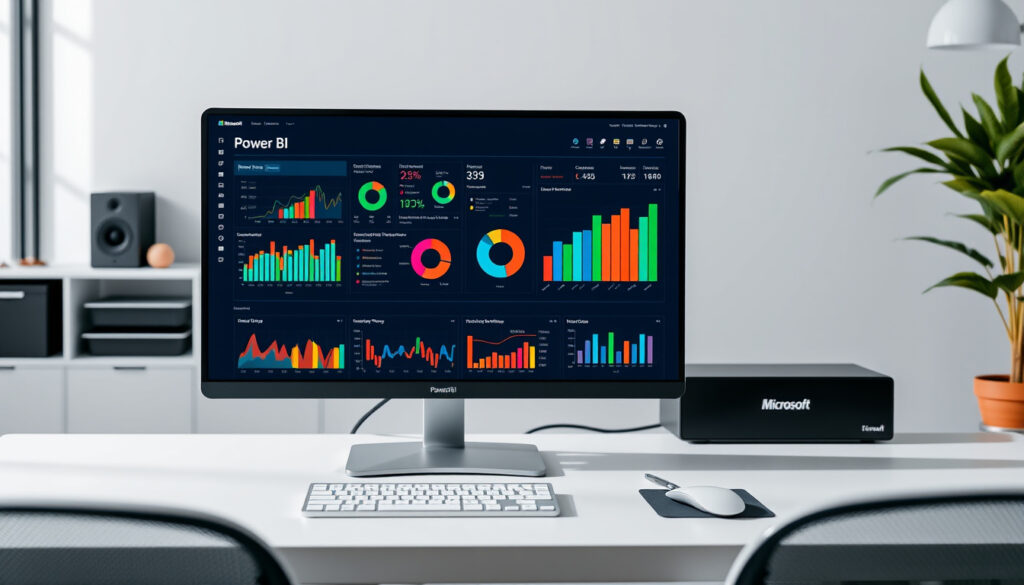
What Is Power BI? A Complete Guide for 2026 | Microsoft BI Tool
If you’ve ever spent an hour wrestling an Excel pivot table only to realize your data set just won’t fit, you already know the frustration. Power BI is Microsoft’s answer to that exact problem — a business analytics platform for interactive dashboards without coding, and this guide breaks down what it is, how it compares to Excel and SQL, whether programming is required, and the learning timeline.
Power BI users worldwide (2025): over 5 million ·
Market share in BI and analytics platforms (Gartner 2024): leader for 17 consecutive years ·
Free desktop version downloads per month: over 1.5 million ·
Supported data source connectors: more than 150
Quick snapshot
- Power BI is a Microsoft product (Microsoft documentation)
- Power BI Desktop is free (Microsoft Power BI)
- No programming is required for basic use (Microsoft getting started guide)
- Exact number of total users (public estimates range 5–10 million) (Gartner BI market analysis)
- Specific future demand after 2026 depending on market shifts (Gartner BI market analysis)
- Exact number of data connectors: official documentation lists over 150, but third‑party analyses often cite 200+ (EPC Group)
- Microsoft released Power BI in July 2015 (Wikipedia overview)
- Monthly updates since 2016 keep the tool current (Power BI release updates)
- AI-powered features, including Copilot integration, are rolling out in 2026 (Microsoft Copilot for Power BI)
- Continued investment in real-time analytics for business users (Power BI product roadmap)
For business users who hit Excel’s row limits or hate pivot-table gymnastics, Power BI isn’t just an alternative — it’s the tool that removes the barrier between you and your data. The catch: basic dashboards take an afternoon, but mastery requires weeks of deliberate practice.
The following table summarizes Power BI’s key specifications.
| Attribute | Value |
|---|---|
| Developer | Microsoft (Microsoft corporate site) |
| First release | July 2015 (Wikipedia release history) |
| Latest version | Power BI Desktop (updated monthly) (Power BI blog) |
| License | Free Desktop version; Pro/Premium subscriptions for sharing (Microsoft pricing page) |
| Platforms | Windows, cloud (SaaS), iOS, Android (Microsoft mobile documentation) |
| Data capacity (Desktop) | Up to 1 GB per dataset (compressed) (Microsoft admin guide) |
Pros of Power BI
- Free Desktop version for building reports
- Drag-and-drop interface requires no coding
- Connects to 150+ data sources
- Interactive dashboards update in real time
- Large data capacity (billions of rows with Premium)
Cons of Power BI
- Sharing reports requires paid Pro or Premium license ($14–$24/user/month)
- Desktop only available on Windows
- Advanced calculations require learning DAX
- Hardware requirements: 4 GB RAM minimum, 1440×900 display
“Power BI is a unified, scalable platform for self-service and enterprise business intelligence (BI).”
— Microsoft documentation
What is Power BI and how does it work?
Core components: Power BI Desktop, Service, Mobile
- Power BI Desktop is the free Windows app for building reports and dashboards. You download it, connect to data, drag and drop visuals, and save as .pbix files. (Microsoft Desktop start guide)
- Power BI Service is the cloud platform where you publish, share, and schedule data refreshes. It’s the collaboration layer. (Microsoft Service overview)
- Power BI Mobile apps for iOS and Android let you view dashboards on the go, with touch-friendly navigation. (Microsoft Mobile docs)
How data flows from source to dashboard
Power BI connects to over 150 data sources — from Excel files and SQL databases to Salesforce and Google Analytics. It uses Power Query (a built-in ETL tool) to clean and transform the data, then VertiPaq compression stores it in-memory, reducing a 1 GB file to roughly 100 MB. (EPC Group)
The result: you build interactive visuals by dragging fields onto a canvas. No SQL, no coding — just your data and a mouse.
The pattern—free creation, paid sharing—defines Power BI’s positioning in the analytics market.
Is Power BI the same as Excel?
“Microsoft Power BI is a suite of business analytics tools that provide interactive visualizations and business intelligence capabilities.”
— Wikipedia
Key differences in data capacity and interactivity
Excel handles static tables and smaller datasets. Power BI handles dynamic, large-scale data. Here’s the quantitative gap:
- Excel’s practical file size limit is about 500 MB per workbook, while Power BI Premium supports datasets up to 400 GB. (EPC Group)
- Excel’s row capacity stops at 1,048,576 rows per worksheet. Power BI can handle billions of rows with Premium capacity and incremental refresh. (EPC Group)
- Power BI supports scheduled refresh up to 48 times per day; Excel requires manual or user-initiated refresh. (EPC Group)
| Feature | Excel | Power BI | SQL |
|---|---|---|---|
| Data capacity | ~1 million rows per sheet | Billions with Premium | Unlimited (database dependent) |
| Interactivity | Static tables, manual refresh | Real-time dashboards, auto-refresh | Query results, no visualization |
| Learning curve | Low for basic use | Low for basics, moderate for DAX | Moderate to high |
When to use Excel vs Power BI
Excel is ideal for small datasets, ad hoc analysis, manual reporting, and individual use. (Edoxi) Power BI is built for team dashboards, real-time updates, and large-scale enterprise data. The trade-off: Excel costs $159.99 as part of Microsoft 365 (includes Word, PowerPoint, and Teams), while Power BI Pro runs $14–$24 per user per month. (Edoxi)
A business analyst who only uses Excel is stuck at 1 million rows. The same analyst with Power BI can analyze the full history of a mid-sized company’s sales data — and let the dashboard refresh itself every 30 minutes.
Power BI wins in 9 of 15 comparison categories for enterprise analytics, while Excel wins in 6 categories. (EPC Group 2026 comparison) The implication: if your work involves datasets larger than a few hundred thousand rows or requires team-based dashboards, Power BI is the right call.
Is Power BI the same as SQL?
Power BI as visualization layer vs SQL as query language
No, they are not the same. SQL (Structured Query Language) is a programming language for managing databases — you use it to ask a database for specific data. Power BI is a visualization tool that turns that data into charts, maps, and dashboards. They complement each other. Power BI can use SQL queries as a data source: you write a SQL query to pull the right records, then Power BI visualizes the result. (Microsoft Power Query overview)
The catch: without SQL skills, you rely on Power Query’s graphical interface, which may limit complex data prep.
Does Power BI require coding?
Drag-and-drop interface for most tasks
No mandatory coding for basic reporting. You can connect to a data source, build a bar chart, add a slicer, and publish a dashboard — all by clicking. Microsoft’s documentation confirms that the core workflow is designed for non-programmers. (Microsoft Desktop start guide)
“Power BI is like Excel on steroids for data visualization.”
— r/PowerBI community
DAX and M for advanced users
For custom calculations (like year-over-year growth), you use DAX (Data Analysis Expressions), a formula language that resembles Excel functions but is more powerful. For data transformation (merging tables, unpivoting columns), you use M, the language behind Power Query. DAX is required for custom measures; M is needed for advanced data shaping. (Microsoft DAX reference, Microsoft Power Query M reference)
Can I learn Power BI in 1 day or 2 days?
Realistic learning path for beginners
In 1 day: you can learn to import data, create basic visuals (bar, line, pie charts), and build a simple dashboard. In 2 days: you can add slicers, filters, and a basic DAX measure (e.g., total sales). Two-day courses from providers like Microsoft Learn cover these fundamentals. (Microsoft Learn data analyst path) Full proficiency — handling complex DAX, performance tuning, and enterprise deployment — takes weeks to months of practice.
Key skills to focus on in a short timeframe
- Import data from Excel, CSV, or databases
- Create basic visuals (bar, line, pie) and format them
- Add slicers and filters for interactivity
- Write simple DAX measures (SUM, COUNT, AVERAGE)
- Publish and share reports via Power BI Service
A competent dashboard in 2 days is achievable. A production-ready, high-performance report that your team relies on for quarterly decisions? That’s a 3-month learning curve.
What this means: invest a weekend for basic competence, but plan for deeper study before delivering enterprise-grade work.
Is Power BI harder to learn than Excel?
Learning curve comparison
Power BI’s interface resembles Excel — the ribbon, the field list, the right-click menus — so initial learning is easier than starting from scratch. Advanced concepts like DAX are more complex than Excel formulas for most users because DAX operates on tables, not cells. (Edoxi)
Similarities in interface and logic
- Both use a ribbon menu and drag-and-drop interactions
- Power BI’s filter pane works like Excel’s filter
- DAX uses functions like SUM, COUNT, and IF — familiar to Excel users
The catch: DAX’s row context and filter context concepts require a mental shift. Most Excel users pick up basic Power BI in 2–3 days but spend 2–4 weeks on intermediate DAX.
Can I self learn Power BI?
Free resources and community support
Yes, self-learning is feasible with structured courses. Microsoft provides free learning paths on Microsoft Learn, including a full Data Analyst certification path. (Microsoft Learn) The Power BI community on Reddit (r/PowerBI) offers peer support with over 130,000 members.
Microsoft Learn and documentation
The recommended learning path for data analysts is Excel → SQL → Power BI. (LearnOmate) Start with Power BI Desktop free version, complete Microsoft’s “Get started with Power BI” module (1 day), then practice with your own data. The official documentation is comprehensive and regularly updated. (Microsoft guide)
The implication: a self-guided learner can become job-ready in 2–3 months of consistent practice.
Related reading: What Is JPG vs PNG · What Is APR on a Credit Card
Frequently asked questions
What is the difference between Power BI Desktop and Power BI Service?
Power BI Desktop is the free Windows app for building reports. Power BI Service is the cloud platform for publishing, sharing, and scheduling data refreshes. You build in Desktop, share via Service. (Microsoft)
Can I share Power BI reports with others?
Yes, but sharing requires a Power BI Pro license (approx. $14–$24/user/month) or a Premium capacity subscription. The recipient also needs a Pro license unless they have a Premium per-user license. (Microsoft pricing)
Is Power BI suitable for small businesses?
Yes. The free Desktop version is enough for building reports. Small teams can share via Power BI Service with a single Pro license. The learning curve is low, and no infrastructure is needed beyond a Windows PC. (Microsoft)
Does Power BI work with non-Microsoft databases?
Yes. Power BI connects to over 150 data sources, including PostgreSQL, MySQL, Oracle, Google Analytics, Salesforce, and more. (Microsoft data sources)
What is DAX in Power BI?
DAX (Data Analysis Expressions) is a formula language for creating custom calculations like year-over-year growth, moving averages, and ranking. It resembles Excel formulas but works on tables and relationships. (Microsoft DAX reference)
How often is Power BI updated?
Power BI Desktop receives monthly feature updates. The Power BI Service is updated continuously. Microsoft publishes a monthly blog post detailing all changes. (Power BI release updates)
Can Power BI be used offline?
Power BI Desktop works offline for building reports. Power BI Service requires internet for sharing and data refresh. Mobile apps have limited offline viewing of dashboards. (Microsoft Mobile docs)
What are the system requirements for Power BI Desktop?
Windows 10/11, 64-bit, at least 4 GB RAM (recommended 8 GB), a display resolution of 1440×900 or higher, and internet for activation. (Microsoft system requirements)
For the business analyst who has been wrestling with Excel workbooks that time out or can’t fit the data, the choice is clear: Power BI removes the technical barrier that SQL and traditional BI tools impose. For the team leader who needs to share live dashboards with stakeholders: Power BI Service delivers real-time visibility without a help desk ticket. And for anyone wondering whether to invest in learning: demand for Power BI skills is expected to remain strong through 2026, with Microsoft continuing to invest in AI-enhanced features. The trade-off isn’t between a free tool and a paid one — it’s between staying within Excel’s row limits and unlocking the full story in your data.
More related posts
 Sofia the First Theme Song Lyrics: Full Text, Singer & History
 James Van Der Beek Health: Stage 3 Colorectal Cancer Timeline
 English to Spanish Google Translate: Accuracy and Tips
 Cups in a Quart – Exact Conversion Chart and Tips
 What Is APR on a Credit Card – Rates, Types and How It Works
 The Unwanted Undead Adventurer: Season 2, Cancellation & Review
 RV Rental Near Me: Costs, Rules, and Best Companies in Ireland
 San Francisco Giants vs Dodgers Match Player Stats – All-Time Records and Key Stats
