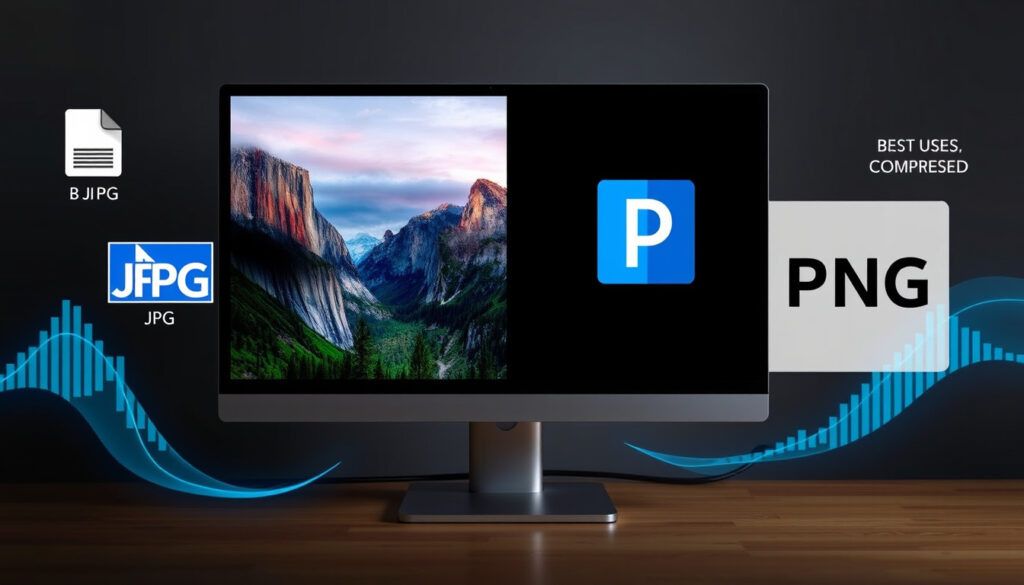
What Is JPG vs PNG: Compression, Sizes & Best Uses
You finish a screenshot or edit a photo, go to save it, and suddenly you’re staring at a dropdown asking JPG or PNG — without a clue which one you actually need. Get it right, and your images load fast and stay crisp. Get it wrong, and you’re either bloating your website or sacrificing quality your audience will notice.
Compression: JPG: lossy | PNG: lossless · Best for photos: JPG smaller file sizes · Supports transparency: PNG yes | JPG no · File size typical: JPG 60-80% smaller than PNG · Web loading speed: JPG faster
Quick snapshot
- JPG uses lossy compression; PNG uses lossless (social media compression guide)
- PNG supports alpha channel transparency; JPG renders as solid rectangles (email marketing image guide)
- JPG files are 60-80% smaller than PNG equivalents (tech comparison with real-world file examples)
- Exact file size ratios vary by image content and compression settings
- Platform-specific re-encoding behavior differs across social networks
- JPG standardized 1992; PNG released 1996
- Instagram launch (2010) influenced mobile-first JPG preference
- Newer formats like WebP gaining adoption for web performance
- Social platforms continue optimizing image pipelines
The table below summarizes the core technical properties that define how each format handles compression and transparency.
| Property | JPG | PNG |
|---|---|---|
| Inventor | JPEG group (1992) | W3C (1996) |
| Compression type | Lossy (DCT compression) | Lossless (LZW compression) |
| Transparency | No | Yes (alpha channel, 256 levels) |
| Typical file size | 60-80% smaller than PNG | Larger, especially with transparency |
| Best use cases | Photos, complex images, web | Graphics, screenshots, logos, icons |
| Colors supported | Millions | Millions |
Is it better to have JPG or PNG?
JPG uses lossy compression, meaning it discards visual data to shrink file sizes — which makes it ideal for photographs and complex images where some quality loss goes unnoticed. PNG uses lossless compression, preserving every pixel perfectly but resulting in larger files. According to a tech comparison with real-world file examples, a color-rich photo saved as JPG might be 1.2MB, while the same image as PNG reaches 2.9MB. For a photo with millions of colors, that compression advantage matters on mobile data plans.
Key differences in compression
JPG relies on DCT (Discrete Cosine Transform) compression that merges similar pixels together. The more you compress, the more detail disappears. PNG uses LZW (Lempel-Ziv-Welch) compression that maintains data integrity — no information is discarded during saving or resaving. According to an email marketing image guide, this means PNG preserves original quality perfectly, while JPG degrades with each re-export. For graphics with clean lines, this difference is immediately visible — JPG compression creates visible artifacts around sharp edges.
- JPG compression ratio reaches approximately 10:1, delivering significantly smaller files
- PNG files grow larger due to lossless compression and transparency layers
- PNG-8 offers smaller files for simple graphics compared to PNG-24
File size and quality trade-offs
JPG files are 60-80% smaller than PNG, leading to faster upload and load times, according to a web optimization guide. For social media, keeping photos under 500KB ensures optimal loading on mobile connections. The quality sweet spot for social platforms sits at 80-90% — anything lower sacrifices visible detail, while higher settings waste bandwidth without perceptible improvement. The catch: every time you re-save a JPG, quality degrades further. PNG avoids this problem entirely.
JPG’s compression artifacts become obvious when you save the same file repeatedly — text in particular blurs into illegibility after two or three re-saves.
What is a JPG file used for?
JPG excels at compressing color-rich photographs thanks to DCT compression, which merges similar pixels together. The Joint Photographic Experts Group standardized this format back in 1992, and it’s remained the default for digital photos ever since. According to a web optimization guide, JPG’s lossy compression typically reduces files to about 10% of their original size.
Best scenarios for JPG
- Photographs with smooth color gradients and complex textures
- Web images where loading speed matters — social posts, news articles, product photos
- Mobile photography where storage and bandwidth are constraints
- Any image where some quality loss is acceptable to achieve smaller file sizes
Examples in web and photos
JPG’s compression works against it when images contain text, line drawings, or sharp geometric edges. Compression artifacts become visible around these elements, making graphics look blurry or distorted. For pure photographs — real-world scenes with natural color transitions — JPG quality at 80-90% settings remains hard to distinguish from the original while delivering massive file size savings.
Photographers uploading to stock platforms or social media should stick with JPG at 80-90% quality: files stay manageable while visual quality remains excellent for most viewers.
Is a screenshot a PNG or JPEG?
Screenshots typically default to PNG on both Mac and Windows — and there’s a good reason for that. PNG is suitable for screenshots due to lossless quality and detail preservation, according to an email marketing image guide. Text in screenshots requires crisp pixel rendering that JPG’s compression simply cannot provide.
Default screenshot formats
- Mac: Screenshots save as PNG by default (⌘+⇧+4)
- Windows 10/11: Snipping Tool and PrtScn default to PNG
- Mobile devices typically save photos as JPG
How to save screenshots as JPG
If you need JPG for a specific platform, conversion is straightforward: open the PNG in any image editor and export as JPG. The tradeoff is visible immediately when screenshots contain text — letters develop fuzzy edges where compression has merged pixels. For screenshots without text content (UI elements, gameplay, photo content), JPG conversion saves significant space with minimal quality impact.
Converting a screenshot with visible text to JPG makes letters progressively harder to read with each re-save — PNG preserves the crisp edges that keep text legible.
When should I use JPEG?
Use JPG for photographs and whenever file size matters — social media posts, website images, email attachments. According to a use-case specific image format guide, JPG best for photos with complex color schemes. The optimal quality setting for social media sits at 80-90%, where you get near-invisible quality loss in exchange for significant file reduction.
JPEG for printing
Print materials typically tolerate higher compression since printers resolve more detail than screens. For web-optimized prints or low-resolution proof prints, JPG at 90% quality works well. For large-format prints where every detail matters, higher quality settings or lossless formats become necessary.
JPEG for social media
JPG files load 60-80% faster than PNG equivalents, according to a photographer’s web optimization guide. Facebook, Instagram, and Twitter all recompress uploaded images regardless of format, so starting with JPG makes sense for photos. A 1.2MB JPG photo uploads and displays faster than a 2.9MB PNG, while the final quality viewers see is nearly identical after platform re-encoding.
How do I convert my JPEG to PNG?
Conversion from JPG to PNG (or vice versa) is lossless in one direction: converting PNG to JPG discards transparency data, while JPG to PNG simply adds a transparency layer (which most images don’t use). Most image editors handle this in seconds. The process adds no quality loss going from JPG to PNG, making it a safe operation whenever you need PNG’s specific features.
Free tools for conversion
- Preview (Mac) — open image, File → Export, select PNG
- Windows Photos — open image, → Save a copy → choose PNG
- Canva (web) — upload image, download as PNG
- Online converters like ConvertFiles.com for batch processing
Steps to convert
Most social platforms — Facebook, Twitter, LinkedIn — automatically re-encode uploaded images to optimize delivery, regardless of your source format. According to a use-case specific guide, this means the original format choice matters less than the quality settings you apply. For screenshots requiring transparency or text clarity, PNG remains the better choice even if platforms ultimately re-encode the result.
- Open your image in Preview (Mac) or Windows Photos app
- Click File → Export or Save a copy
- Select PNG from the format dropdown
- Choose your destination folder and confirm
The implication: platform re-encoding means your source file’s format determines how much editing headroom you retain, not the final output format.
JPG versus PNG choice shapes how much quality you sacrifice or preserve across your workflow.
| Format | Best for | Quality settings | Typical use |
|---|---|---|---|
| JPG | Photos, web images, social media | 80-90% quality for social | Smaller files, faster loading |
| PNG-8 | Simple graphics, icons | 256 colors maximum | Smaller than PNG-24 |
| PNG-24 | Graphics, screenshots, transparency | 16-bit color depth | Crystal clear lines, transparency |
| PNG-32 | Complex graphics with alpha | Alpha channel support | Semi-transparent elements |
Upsides
- JPG files are 60-80% smaller than PNG, loading faster on mobile
- PNG supports 256 levels of transparency for web icons and overlays
- PNG lossless compression preserves quality across multiple saves
- PNG-8 reduces file size for simple graphics without transparency
Downsides
- JPG lossy compression degrades quality with each re-save
- JPG does not support transparency — always renders as solid rectangle
- PNG files significantly larger, impacting page load times
- JPG compression creates visible artifacts around text and sharp edges
What this means: PNG graphics with transparency drive 12% higher engagement, but a PNG photo on a 3G connection takes 2.4 seconds to load versus 1.0 second for JPG. For photographers and social media managers, the decision framework is straightforward: photographs and web images get JPG at 80-90% quality; screenshots, graphics with text, logos, and any image needing transparency get PNG. The platforms will re-encode your upload anyway, so optimizing for your source file’s strengths — not the destination’s eventual format — gives you the best balance of quality and performance.
JPG vs PNG comparison
Three core differences separate these formats: compression method, transparency support, and file size. For photographs, JPG wins on size. For graphics and screenshots, PNG wins on quality preservation.
| Criteria | JPG | PNG |
|---|---|---|
| Compression | Lossy (DCT) | Lossless (LZW) |
| Transparency | None | Alpha channel, 256 levels |
| File size | 60-80% smaller | 2-3× larger |
| Quality degradation | Yes, with each save | None |
| Best for photos | ✓ Excellent | Possible but wasteful |
| Best for graphics | Artifacts around edges | ✓ Perfect |
| Best for screenshots | Text becomes blurry | ✓ Crystal clear |
| Social media performance | ✓ Fast loading | Slower, larger files |
The pattern: JPG trades visual fidelity for speed, while PNG trades speed for visual fidelity.
“Use JPG for photos, complex images, and when file size matters (Instagram posts, Facebook photos). Use PNG for graphics with text, logos, images with transparency.”
“In images with fewer colors, like cartoons or logos, using the PNG format allows for smaller file sizes while maintaining high quality.”
For photographers and social media creators, the format choice carries real consequences: a perfectly composed photo saved as PNG bloats to 2.9MB when 1.2MB as JPG would load faster and look identical after platform re-encoding. A screenshot saved as JPG renders text illegible — PNG keeps it crisp across every re-share. The decision framework holds regardless of platform or purpose: photographs favor JPG’s compression efficiency; everything requiring precision or transparency demands PNG’s lossless quality. Choose based on what your image contains, not what the dropdown suggests.
Related reading: DO vs MD differences · how to draw images
While JPG suits photos with its lossy compression, PNG shines for graphics needing transparency, as a detailed JPG vs PNG overview highlights key trade-offs in everyday use.
Frequently asked questions
What are the disadvantages of a JPG file?
JPG files discard visual data during compression, and this loss is permanent and cumulative — each re-save degrades quality further. JPG also cannot support transparency, making it unsuitable for logos, icons, or any image requiring transparent backgrounds. Compression artifacts become visible around text, sharp edges, and high-contrast areas.
How do I know if my photo is a JPG?
Check the file extension in your browser’s address bar or file explorer — JPG files end in .jpg, .jpeg, or occasionally .jpe. On desktop, right-click the file and select Properties → Details. Mobile users can view file details through the Photos app or gallery settings.
How can I check my photo format?
On Mac, right-click the file → Get Info → look for Kind field showing JPEG or PNG. On Windows, right-click → Properties → General tab shows file type. On mobile, open the image in your Photos app, access the share sheet, and look for format details in the info section.
Are iPhone photos PNG?
No, iPhone photos default to HEIC format (efficient in Apple’s ecosystem), which converts to JPG when shared to other platforms. Screenshots on iPhone save as PNG. Direct export from the Photos app defaults to HEIC, requiring conversion to JPG or PNG for wider compatibility.
JPG or PNG which is better for printing?
For print, PNG generally performs better due to lossless compression — the original quality remains intact for high-resolution output. JPG’s lossy compression may introduce artifacts that become visible in print, especially in areas with fine detail or text. However, for photographs destined for print, JPG at high quality settings (90%+) works well and keeps file sizes manageable.
Is PNG or JPEG better for Instagram?
JPG works better for Instagram photos — smaller file sizes upload faster and the platform re-encodes everything anyway. For Instagram Stories overlays, logos, or any content requiring transparency, PNG becomes necessary despite the larger file size. Optimizing at 80-90% quality keeps files under Instagram’s recommended 500KB limit.
JPG or PNG for digital art?
PNG is the clear choice for digital art. Lossless compression preserves every brush stroke and layer detail without quality degradation across edits. PNG’s support for 16-bit channels avoids color banding in gradients. JPG’s compression artifacts would accumulate with each export and re-import, degrading the artwork over time.
More related posts
 Where to Watch LA Rams vs Philadelphia Eagles: TV & Live Stream
 Cyber Monday Deals 2025: Ireland Black Friday Comparison
 What Is Power BI? A Complete Guide for 2026 | Microsoft BI Tool
 Best Horror Movies of All Time: Critics’ Rankings & Consensus
 Snow White 2025 Showtimes: Guide, Age Rating, Reviews
 What Does BBL Mean? Medical Procedure vs Slang Explained
 Philippians 4:6-7: Overcome Anxiety with Prayer and Thanksgiving
 Find IMAX Theater Near Me: Worth It? Locations & More
